Do you visit certain websites every single day?
Maybe it’s Gmail, your CRM dashboard, or even your child’s school portal. Opening the browser, typing the address, and logging in again can feel repetitive.
That’s where desktop shortcuts come to the rescue.
Want quick access to your favorite websites? This guide shows you how to create a desktop shortcut in just a few clicks — whether you’re on Windows, Mac, or even your phone.
You’ll also pick up some handy tips, safety pointers, and time-saving tricks along the way
Why Do You Need a Website Shortcut on Desktop?
Think of a desktop shortcut like a magic door. Instead of searching or typing the address, you just double-click, and the site opens instantly.
Some practical reasons why you might want to create shortcuts:
- Faster access : No more typing long URLs.
- Organized workspace : Keep your most-used sites right on the desktop.
- Boost productivity : Great for professionals who use dashboards daily.
- Helpful for families :Kids or parents can open sites without confusion.
Example: If you’re a student, you can keep Google Classroom or Zoom just one click away. If you’re an entrepreneur, you might create a shortcut for tools like SEMrush or your business website.
Related reading: You might also like my article on website design pricing.
How to Create a Website Shortcut on Windows (Step-by-Step)
Windows remains the most common operating system, so let’s start here. There are multiple ways to do it, depending on your browser.
Method 1 – Using Google Chrome
(Best for app-like shortcuts)
- Open Google Chrome and go to your website (example: Gmail).
- Click the three dots menu (top-right corner).
- Go to More Tools → Create Shortcut.
- Name your shortcut.
- (Optional) Tick Open as window if you want it to look like an app.
- Click Create.
Result: You’ll see a clickable icon on your desktop. Double-click, and the site opens directly.
Method 2 – Using Microsoft Edge
(Great for business dashboards)
- Open Edge and go to the website.
- Click the three dots menu.
- Select Apps → Install this site as an app.
- Name your shortcut → Click Install.
The shortcut now appears on your desktop and Start menu.
Example: If you work in HR, you could install your HR portal as an app-like shortcut.
Method 3 – Firefox Drag-and-Drop
- Open Firefox and go to your site.
- Resize the browser so you can see both the desktop and browser.
- Drag the padlock icon from the address bar onto the desktop.
That’s it. The shortcut will open in your default browser.
Method 4 – Manual Shortcut (Works in All Browsers)
This method works even if you’re not using Chrome, Edge, or Firefox.
- Right-click on your desktop.
- Select New → Shortcut.
- Enter your website URL (example: https://yourwebsite.com).
- Click Next, give it a name, and click Finish.
You just created a shortcut manually.
PAA Answer: “How do I put icons on my desktop?” → This method is exactly how you do it.
How to Make a Website Shortcut on Mac (Safari & Chrome)
Mac users, don’t worry you can do the same with a few clicks.
Safari Drag-and-Drop (.webloc Files)
- Open Safari.
- Go to the website.
- Drag the URL from the address bar to your desktop.
This creates a .webloc file that opens in Safari.
Chrome Create Shortcut (Mac)
- Open Chrome.
- Menu → More Tools → Create Shortcut.
- Tick Open as window → Create.
- Shortcut goes into Applications folder → drag it to desktop.
Example: Turn Notion or Slack into desktop shortcuts for quick access.
Automator Method (Advanced)
- Open Automator (search via Spotlight).
- Create a new Application.
- Add a Run Shell Script with:
open -a "Google Chrome" 'https://yourwebsite.com' - Save as App → Move to desktop.
This is great if you want multiple browser-specific launchers.
How to Add a Website Shortcut to Mobile Home Screen (Android & iPhone)
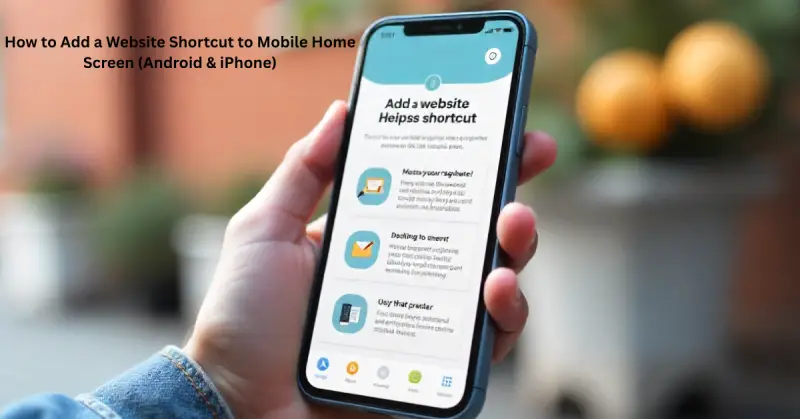
Here’s the part most articles miss mobile shortcuts. These work just like apps.
Android (Google Chrome)
- Open Chrome → Visit the site.
- Tap three dots menu → Add to Home Screen.
- Name your shortcut → Add.
Now it appears on your phone’s home screen.
iPhone (Safari)
- Open Safari → Go to the website.
- Tap the Share icon.
- Select Add to Home Screen.
- Name it → Add.
The shortcut now looks like a real app on your iPhone.
Example: You could add shortcuts for your child’s school portal, your bank, or even ChatGPT.
Advanced Productivity Hacks with Shortcuts
Shortcuts can do more than just open a single site.
- Pin to Taskbar/Start menu/Dock → right-click the shortcut → pin.
- Organize into folders → group shortcuts by category (work, personal, learning).
- Batch file trick (Windows) → Create a script that opens multiple sites at once. Example:
start https://gmail.com start https://calendar.google.com start https://ambreenbasit.online - Shortcut keys → Right-click shortcut → Properties → Shortcut tab → assign a hotkey.
(Answering PAA: “How to create a shortcut key for a website?”)
Example: Press Ctrl + Alt + G to open Gmail instantly.

Are Desktop Website Shortcuts Safe? (Security Tips)
Yes, shortcuts are safe but with some precautions:
- Always create from trusted websites.
- Double-check the URL (fake shortcuts can lead to phishing).
- Keep your browser updated.
- In offices, IT teams may restrict shortcuts for security reasons.
Customize Your Website Shortcuts (Windows & Mac)
Don’t like the default icon? Change it!
- Windows → Right-click shortcut → Properties → Change Icon.
- Use free converters like ICO Converter.
- Mac → Get Info → Drag a new image onto the icon preview.
Example: Replace the Gmail shortcut icon with the official Gmail logo.
Common Issues & Fixes
- ❌ Shortcut opens in wrong browser → Change default browser in settings.
- ❌ Icon looks blurry → Use a higher-resolution icon.
- ❌ Shortcut not working → Ensure the link starts with https://.
FAQs About Desktop Website Shortcuts
Q1: How do I create a shortcut to a website on my desktop?
→ Use Chrome (Create Shortcut), Edge (Install as app), or drag URL to desktop.
Q2: How do I make a website appear on my desktop?
→ Just drag the site’s address bar link to the desktop or use “New Shortcut.”
Q3: How to create a shortcut key for a website?
→ Right-click the desktop shortcut → Properties → Shortcut Key → Assign.
Q4: How do I put icons on my desktop?
→ Right-click desktop → New → Shortcut, or drag and drop.
Q5: Do website shortcuts work offline?
→ No, they open live websites. Internet is required.
Q6: Can I use custom icons?
→ Yes! Windows allows .ico icons; Mac allows drag-and-drop icons.
Conclusion – Simplify Your Online Life with Website Shortcuts
Learning how to make a desktop shortcut for a website may seem like a small trick, but it saves time every day.
Whether you’re a professional managing dashboards, a student opening study sites, or a parent helping kids, shortcuts give you one-click access.
And don’t forget — you can even create shortcuts on your Android or iPhone home screen, turning websites into app-like experiences.
Want to explore more tech tips? Check out my guide on SEO
Now go ahead, create your first shortcut and maybe even make this article your very first desktop shortcut 😉







9 Responses