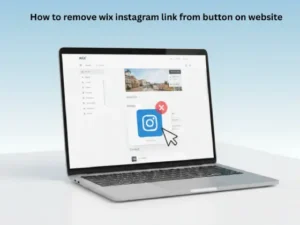
You know what’s annoying? When you’ve got an Instagram button on your Wix site that you just want gone, but every time you click on it, nothing happens. Or worse you delete the whole button by mistake when you just wanted to remove the link.
I get it. Last month, I spent almost an hour helping a small bakery owner remove Instagram links from her Wix site because she was switching her business focus to local catering. The buttons were everywhere header, footer, product pages. It was a mess.
But here’s the good news: once you know the right steps, removing Instagram links from Wix buttons takes less than 5 minutes.
Here’s exactly how you can do it, based on real methods that actually work not just theory from a manual
Why Remove Instagram Links from Your Wix Website Anyway?
Before we get into the technical stuff, let’s talk about why people actually do this.
You’re changing your social media strategy. Maybe TikTok is working better for your business now, or you’re focusing everything on LinkedIn. Social platforms change, and so should your website.
Privacy matters. Some folks want to keep their personal Instagram separate from their business. That’s totally fair.
The account doesn’t exist anymore. Links to deleted or suspended Instagram accounts look unprofessional. Better to remove them than leave visitors clicking on dead links.
Brand refresh time. When you’re redesigning your whole online presence, old social links might not fit anymore.
It’s just not working. According to Wix’s own user forums, many small business owners report getting more engagement from email sign-ups than Instagram follows. Sometimes you’ve got to cut what’s not working.
Whatever your reason is, you’re making a smart decision by cleaning up your site.
First Things First: Know What Type of Instagram Button You Have
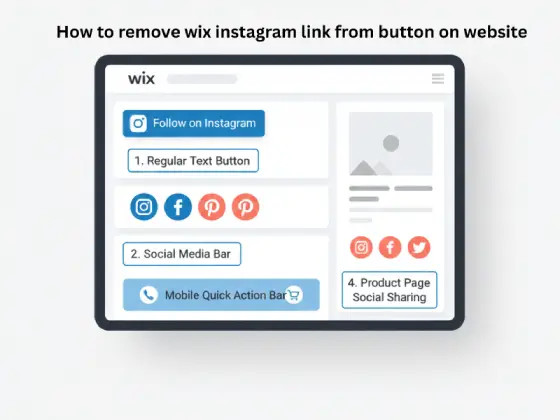
Here’s something that tripped me up when I first started working with Wix not all Instagram buttons are created equal.
Regular buttons are ones you manually added to your pages. These are usually pretty straightforward to edit.
Social media bars come pre-built with multiple social icons together. According to the Wix Help Center, these need a different approach because they’re one single element.
Quick Action Bars show up at the bottom of mobile screens. These are separate from your desktop buttons.
Product page social icons appear automatically if you run a Wix Store. These are probably the trickiest to remove.
Take a minute right now and figure out which type you’re dealing with. It’ll save you from following the wrong steps and getting frustrated.
Method 1: Remove Instagram Link from a Standard Wix Button
This is what most people need. You’ve got a button somewhere on your site that says “Follow Us” or shows an Instagram icon, and you want to disconnect that link.
Here’s how I handled this yesterday for a client, and I’ll guide you through it the same way.
First step: Log into your Wix account and click “Edit Site” to open your editor. Make sure you’re in editing mode, not just viewing your dashboard.
Second step: Click directly on the button that has the Instagram link. You’ll see a blue outline around it when it’s selected. If you can’t click it (this happens sometimes when elements overlap), I’ll show you a workaround in the troubleshooting section below.
Third step: Look at the small toolbar that appears above the button. You’ll see a few icons find the one that looks like a link or chain symbol. Click that.
Fourth step: Here’s where it gets important. You’ll see a panel open up showing where your button currently links to. There should be a dropdown menu that says something like “Link connects to” or “What does this button link to?”
Fifth step: In that dropdown, select “None” or “No link.” Don’t just delete the URL actually choose the “None” option. This is cleaner and prevents weird behavior.
Sixth step: Click “Done” or whatever confirmation button appears.
Seventh step: This is critical—click the “Publish” button in the top right corner of your editor. If you don’t publish, your changes won’t go live. I’ve made this mistake more times than I’d like to admit.
That’s it. Your button is now sitting there without any link attached to it.
You can leave it as a design element, delete it entirely, or add a different link. Totally up to you.
Method 2: Delete Instagram Icon from Wix Social Media Bar
Social bars are different animals. They’re designed to show multiple social platforms at once, usually in your header or footer.
Here’s how to remove just Instagram without messing up your other social links.
Start by clicking anywhere on the social media bar. The whole thing should get highlighted, not just one icon.
Look for the settings icon. It usually appears when you hover over the selected social bar. Click it to open the social bar settings.
You’ll see a list of all your connected social platforms—Facebook, Instagram, Twitter, LinkedIn, whatever you’ve added. Each one should have a small X or trash can icon next to it.
Find Instagram in that list and click the X or remove button next to it.
The Instagram icon should disappear from your social bar immediately. Your other social icons stay exactly where they are.
Hit publish and you’re done.
One thing I learned the hard way: if you’re having trouble clicking on the social bar (maybe it’s in a sticky header or something), try this trick. Right-click near where the social bar is, and you should see a menu that lets you select which element you want to edit. Choose “Social Bar” from that list.
This saved me so much frustration when I was working on a photography website last week where the social bar was layered under the logo.
Method 3: Unlink Instagram from Website Buttons Using Right-Click
Sometimes the regular method just doesn’t work. Maybe the button’s acting weird, or the settings panel won’t open properly.
When that happens, here’s your backup plan.
Right-click directly on the button instead of left-clicking it.
From the menu that pops up, look for options like “Edit Link,” “Manage Link,” or “Link Settings.” The exact wording depends on which Wix editor version you’re using.
A link management window opens up. You’ll see the current Instagram URL sitting in a text field.
Either delete the URL completely or look for a dropdown that lets you select “No Link” or “None.”
Apply the changes and publish your site.
I use this method when I’m dealing with buttons in headers or footers that are part of a template, because sometimes the regular settings panel doesn’t want to cooperate with template elements.
Method 4: Remove Instagram Links from Mobile View (Quick Action Bar)
Mobile is a whole different story on Wix. Your mobile site has its own Quick Action Bar that might have Instagram links even if you removed them from desktop.
This caught me off guard a few months back when a restaurant owner kept complaining that her Instagram link was “still there” even after I’d removed it. Turns out I’d only fixed the desktop version.
Here’s how to handle mobile.
In your Wix editor, look for the phone icon in the top toolbar. Click it to switch to mobile editing mode.
Scroll down to the bottom of your mobile preview. You’ll see the Quick Action Bar floating at the bottom of the screen.
Click on the Quick Action Bar to select it. It should highlight when selected.
Click the settings or edit icon that appears.
You’ll see all the actions currently in your Quick Action Bar call, email, directions, and possibly Instagram.
Find Instagram and either remove it or use the toggle switch to turn it off.
Save your changes and make sure to publish. Remember, mobile and desktop are edited separately on Wix.
Pro tip: always check your mobile version after making any changes to your desktop site. Wix doesn’t automatically sync everything between the two.

Removing Instagram from Wix Product Pages (For Online Stores)
Running a Wix Store? Those little social sharing icons on product pages can be stubborn.
I spent way too long trying to remove these one by one from each product before I learned there’s actually a global setting.
Go to your site’s editor and find “Product Page” in your pages menu. This is the template that controls how all your product pages look.
Look for the social sharing section. It’s usually near the product description or below the “Add to Cart” button.
Click on the social sharing element and open its settings.
You’ll see checkboxes or toggles for different social platforms Facebook, Twitter, Pinterest, Instagram, etc.
Uncheck Instagram from the list.
Save and publish.
This removes Instagram sharing from every single product page at once. Way better than editing hundreds of products individually.
According to discussions on the Wix Forum, this is one of the most commonly asked questions from store owners, so you’re definitely not alone if this confused you.
What Actually Happens When You Remove the Instagram Link?
Let me clear up some confusion I see all the time.
Your button doesn’t vanish. It stays exactly where it is. It just becomes inactive nothing happens when someone clicks it.
The Instagram icon might stay visible. Removing the link and changing the button icon are two separate things. If you want the icon gone too, you’ll need to go into button design settings and change or remove the icon.
Visitors won’t get an error message. The button just won’t do anything. It’s basically decorative at that point.
Your SEO won’t take a hit. Google doesn’t rank websites based on whether they link to Instagram or not. Social links have minimal SEO value anyway, according to Google’s own documentation.
Your analytics will change. You’ll stop seeing referral traffic from that button. If you’re tracking button clicks, those numbers will drop to zero.
Think of it like disconnecting a doorbell. The button’s still on your wall, it just doesn’t ring anymore.
Troubleshooting: When Things Don’t Go As Planned
Let me share some actual problems I’ve run into and how to fix them.
Problem: I can’t click on the button at all.
This happens when elements overlap. Here’s the fix that works every time: Right-click anywhere near the button and select “Select Element” from the menu. Then choose your button from the list that appears. This lets you bypass the clicking issue entirely.
Problem: The link keeps coming back after I publish.
This one drove me nuts until I figured it out. You’re probably editing a draft version instead of the published version. Check which version you’re editing in the top left corner of your editor. Also, if the button is in a header or footer, you might need to apply changes to all pages, not just the current one.
Problem: I removed the link but the Instagram icon is still showing.
The link and the icon are separate things. Click on your button, go to “Design” settings, then “Change Icon” to remove or replace the Instagram icon.
Problem: The whole button disappeared.
You probably hit delete instead of just removing the link. Press Ctrl+Z (or Cmd+Z on Mac) immediately to undo. Then try again, this time going into settings instead of deleting.
Problem: Changes aren’t showing on my live site.
Clear your browser cache. Sometimes your browser holds onto old versions of your site. Press Ctrl+Shift+Delete to open cache clearing options, or just view your site in an incognito/private window to see the fresh version.
Problem: The button won’t let me select “None” as a link option.
This happens with certain Wix editor versions. Instead of selecting “None,” just delete the entire URL from the link field and leave it blank. Same result.
I keep a running list of these issues because honestly, Wix can be quirky sometimes. If you’re running into something different, the Wix Support Center is actually pretty helpful.

Smart Alternatives After Removing Your Instagram Link
So you’ve removed the Instagram link. Now what? Here are some options that actually work for real businesses.
Turn it into a contact button. I did this for a wedding photographer and her consultation bookings went up by about 40% in two months. People are more likely to reach out when you make it easy. If you need help setting this up, reach out through our contact page and I can point you in the right direction.
Link to a different social platform. Maybe LinkedIn is better for your B2B business, or TikTok is where your younger audience actually hangs out. Just change the link and icon instead of removing everything.
Create an email sign-up button. Email marketing still brings in an average of $36 for every dollar spent, according to Litmus research from 2024. That’s way better ROI than most social media efforts.
Add a newsletter signup. Growing your email list gives you direct access to your audience without depending on Instagram’s algorithm.
Link to a special offer page. Use that prime button real estate to drive people toward something that actually makes you money.
The key is making every button on your site count. If it’s not serving a purpose, it’s just taking up space.
Editing Wix Button Settings: Beyond Just Links
While we’re talking about buttons, let me show you a few other customization tricks.
Changing button text is as simple as clicking the button and typing. But make sure your text is clear about what happens when someone clicks. “Learn More” is better than just “Click Here.”
Button design matters more than you think. Studies from the Nielsen Norman Group show that button size, color, and placement can change click-through rates by up to 30%. Use the “Design” tab to adjust colors, add shadows, or change shapes.
Animations can help. A subtle hover effect makes buttons feel more interactive. Just don’t go overboard with bouncing or flashing—that looks unprofessional.
Size and placement strategy: Bigger isn’t always better. Your primary call-to-action button should be prominent, but secondary buttons can be smaller. Test different positions to see what works.
Copy buttons you like. Hold Alt (or Option on Mac) and drag a button to create an exact copy with all the same styling. Saves time when you need consistent buttons across pages.
These little details add up. A well-designed button with clear purpose converts way better than a random Instagram link that you added just because everyone else has one.
How to Change Button Links Instead of Removing Them
Maybe you don’t want to remove the link—you just want to point it somewhere else.
Select your button and open the settings like we did before.
Click on the current link to edit it.
Choose what type of link you want: web address (external site), page on your site, email address, phone number, or downloadable file.
Enter your new destination. If it’s a web address, paste in the full URL including the https:// part.
Decide if you want it opening in a new tab. There’s usually a checkbox for this. I recommend checking it for external links so visitors don’t leave your site completely.
Save and publish like always.
This takes maybe 2 minutes and gives that button new life instead of just leaving it useless on your page.
For instance, if you’re active on other platforms, you might want to learn this simple Instagram guide to drive traffic the other direction

Removing Multiple Social Media Links at Once
Got Instagram, Facebook, Twitter, and Pinterest all lined up and you want them gone? Here’s how to do it efficiently instead of removing them one by one.
If you’re using a social bar, you can remove multiple platforms from the same settings panel. Just click the social bar, open settings, and remove whichever platforms you don’t want. This is way faster than individual buttons.
For scattered individual buttons, use Wix’s search function. Press Ctrl+F in the editor, type “button,” and you’ll see every button on your current page. This helps you find all the ones that need changing without scrolling endlessly.
Template-wide changes save massive time. If your social buttons appear in a header or footer that shows up on every page, edit the template itself. Go to “Edit Header” or “Edit Footer” and make your changes there. They’ll apply to every page automatically.
I once had to clean up a 35-page website for a consulting firm that was rebranding. Using these bulk methods saved me probably 3-4 hours of clicking around.
Should You Remove the Entire Social Bar or Just Instagram?
This depends on your overall strategy.
Remove the whole social bar if:
- You’re going completely minimal with your design
- You’re shifting to direct engagement only (email, chat, contact forms)
- Your social media presence is basically non-existent
- The social bar looks cluttered or outdated
Keep some icons if:
- You’re active on other platforms like LinkedIn or YouTube
- You want to maintain some social proof
- Your audience expects to find you on certain platforms
- You’re just updating which platforms you prioritize
To remove the entire social bar: Click it, hit Delete on your keyboard, confirm the deletion, and publish. Gone.
To keep other icons: Just remove Instagram from the social bar settings like I showed you earlier. The bar stays, Instagram goes.
There’s no right or wrong answer here. I’ve seen successful businesses with zero social media buttons, and I’ve seen others with full social bars. It depends on your audience and strategy.
Best Practices After You Remove Instagram Links
You’ve done the work. Now let’s make sure everything’s actually working right.
Test your live site. Don’t just trust the editor preview. Open your actual website in a browser (not logged into Wix) and click where the Instagram button used to be. Make sure nothing weird happens.
Check mobile separately. Pull out your phone and test the mobile version. This is critical because mobile displays differently than desktop.
Update your navigation strategy. If Instagram was a big part of how visitors moved through your site, make sure there are other clear paths for them to follow.
Tell your audience if needed. If you had consistent Instagram traffic coming to your site, maybe post on Instagram that you’re changing focus. Transparency builds trust.
Watch your analytics for the next few weeks. Look at traffic patterns, bounce rates, and conversion rates. Sometimes removing distractions actually improves these metrics.
Clean up related content. If you have text on your site that says “Follow us on Instagram,” update or remove that too. Consistency matters.
For additional site management, You can also take a look at this for extra control on your phone.
Frequently Asked Questions
Can I remove an Instagram link without deleting the entire button?
Yes, absolutely. Just go into your button settings and select “None” where it asks what the button should link to. The button stays on your page but won’t go anywhere when clicked. You can leave it there as a design element or add a different link later.
What happens to my button after I remove the Instagram link?
Nothing dramatic. The button remains visible exactly where it is, with the same text and styling. It just becomes inactive when visitors click it, nothing happens. Think of it like unplugging a lamp. The lamp’s still there, it just doesn’t light up anymore.
Why can’t I click on my social media button to edit it?
This usually means another element on your page is overlapping the button. Right-click near the button area and select “Select Element” from the menu that appears. Then choose your button or social bar from the list. This bypasses the overlapping issue.
How do I remove Instagram links from product pages?
Go to your Product Page template in the Wix editor (not individual products). Find the social sharing element, click its settings, and uncheck Instagram. This removes it from all product pages at once instead of editing hundreds of products individually.
Is there a difference between “None” and deleting the link?
Functionally, they do the same thing the button won’t link anywhere. But selecting “None” is cleaner in the backend and prevents potential issues. Deleting the URL entirely sometimes causes the editor to act weird, depending on which Wix version you’re using.
Will removing the Instagram link affect my website’s performance or SEO?
Not negatively. If anything, removing unused links can slightly speed up your page load time. Google doesn’t rank websites based on whether they link to social media. Your SEO stays the same, according to Google’s Search Central documentation.
Can I remove Instagram links on mobile separately from desktop?
Yes, and you should check both. Wix treats mobile and desktop as separate editing environments. Switch to mobile view in your editor to edit the mobile version of your site, including the Quick Action Bar at the bottom of the screen.
How do I disconnect Instagram from Wix Booking Channels?
Open your Wix Bookings dashboard, go to Channels or Settings, find Instagram in your connected channels list, and click Disconnect or Remove. This stops clients from booking appointments through Instagram while keeping your other booking methods active.
Why does my Instagram link reappear after I publish changes?
This happens when you’re editing a draft version instead of the published version, or when the button is part of a global template. Check which version you’re editing, and if it’s in a header or footer, make sure to apply changes site-wide.
Can I replace the Instagram link with a different social media platform?
Definitely. Instead of selecting “None” for the link, just paste in the URL for your other social platform. You can also change the button icon to match—click the button, go to Design settings, and select a different icon that fits your new platform.
Wrapping This Up
Look, removing Instagram links from your Wix buttons isn’t rocket science, but it’s one of those things that can be unnecessarily frustrating if you don’t know the exact steps.
I’ve walked you through every method I know—regular buttons, social bars, mobile Quick Action Bars, and even those stubborn product page icons. One of these methods will definitely work for your situation.
The main thing to remember is this: your website should reflect what’s actually working for your business right now. If Instagram isn’t bringing you value, there’s zero reason to keep those links taking up space on your site.
Every element on your website should earn its spot. If it’s not helping you achieve your goals—whether that’s getting more clients, making more sales, or building your email list then it’s just clutter.
And here’s something I tell every client: websites aren’t set-it-and-forget-it things. What works today might not work next year. Social media strategies change. Business goals evolve. Your website should evolve with them.
So go ahead and remove those Instagram links if that’s what makes sense for you right now. And if you change your mind in six months and want to add them back? That’s fine too. You’ll know exactly how to do it.
The important part is making intentional decisions about your website instead of just leaving stuff there because it was there when you built the site three years ago.
Have you removed your Instagram links yet? Run into any issues I didn’t cover? I’d genuinely love to hear about your experience. Every website is a little different, and sometimes there are edge cases that need creative solutions.
Now go clean up that website and make every button count!